Workspace
How to set monitor height and viewing distance
Raising a display is not automatically an improvement. Start with your sitting position, then consider the area you look at most and the size of the text.
Türkçe oku ↗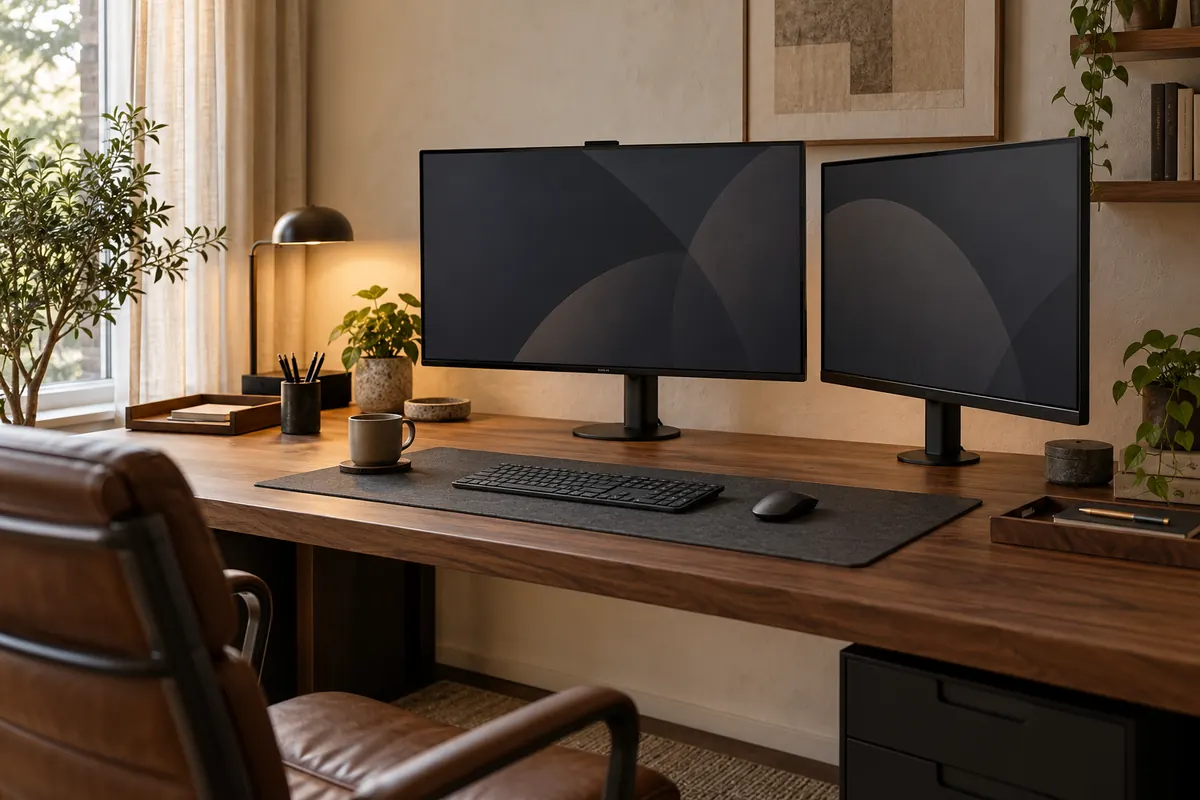
The AI-generated cover illustrates a workspace; it is not a photograph of a product for sale.
Start with the display in front of you and try its upper edge at or slightly below eye level. Adjust distance alongside text size so reading does not require leaning forward.
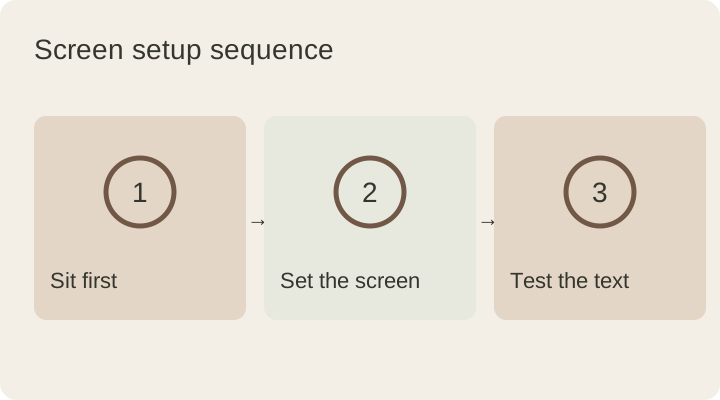
Set your chair before your display
A measurement from the desktop to the screen tells only part of the story. Two people using the same monitor may need different positions because their chair settings, height and tasks differ. Sit in your normal working position and make sure the keyboard and mouse are within comfortable reach. Then check whether looking at the screen makes you lift your chin.
A side photograph can help you compare small changes. Treat it as a record of your setup, not as a posture diagnosis. Avoid changing the chair, display and keyboard repeatedly at the same time: establish the sitting position first, then adjust one part of the screen setup.
Where should the screen sit?
OSHA’s monitor guide suggests the top of the screen at or slightly below eye level as a starting point. That does not prescribe a universal height in centimetres. Screen size, glasses and the task you perform can change the useful position.
Move your most frequently used window into the part of the display you can read comfortably. If you continually look at a tiny panel in an upper corner, adjust the application layout as well as the stand. Explore the travel of the existing monitor foot before buying a taller riser.
Change text size alongside distance
If you move forward to read, bringing the screen closer is not always the first adjustment to try. Increase operating system scaling or application zoom, return to your usual position and check the whole screen again. Do not make text smaller simply to match someone else’s preferred viewing distance.
For a useful trial, open a document, spreadsheet and video-call window that you use every day. Spend a few minutes with each and note when you lean in or tilt your head. Testing real tasks reveals more than arranging an empty desktop for a photograph. Keep a short note of the setting that worked for each application.
Before buying an arm or riser
- Verify the monitor weight without its stand and its mounting pattern.
- Check desktop thickness, material and supporting rails underneath.
- Leave room for rotation without hitting a wall or neighbouring object.
- Allow the power and display cables to follow the full movement.
A suitable weight rating does not establish that an arm can attach to every desk. Read the desk and mount instructions together. If the current stand offers the position you need, you may not need an additional accessory at all.
Common questions and a final check
Should two displays have matching upper edges? Similar alignment is a useful starting point. The priority is keeping your main display in front of you and making the transition comfortable; compare text scaling when the displays differ in size.
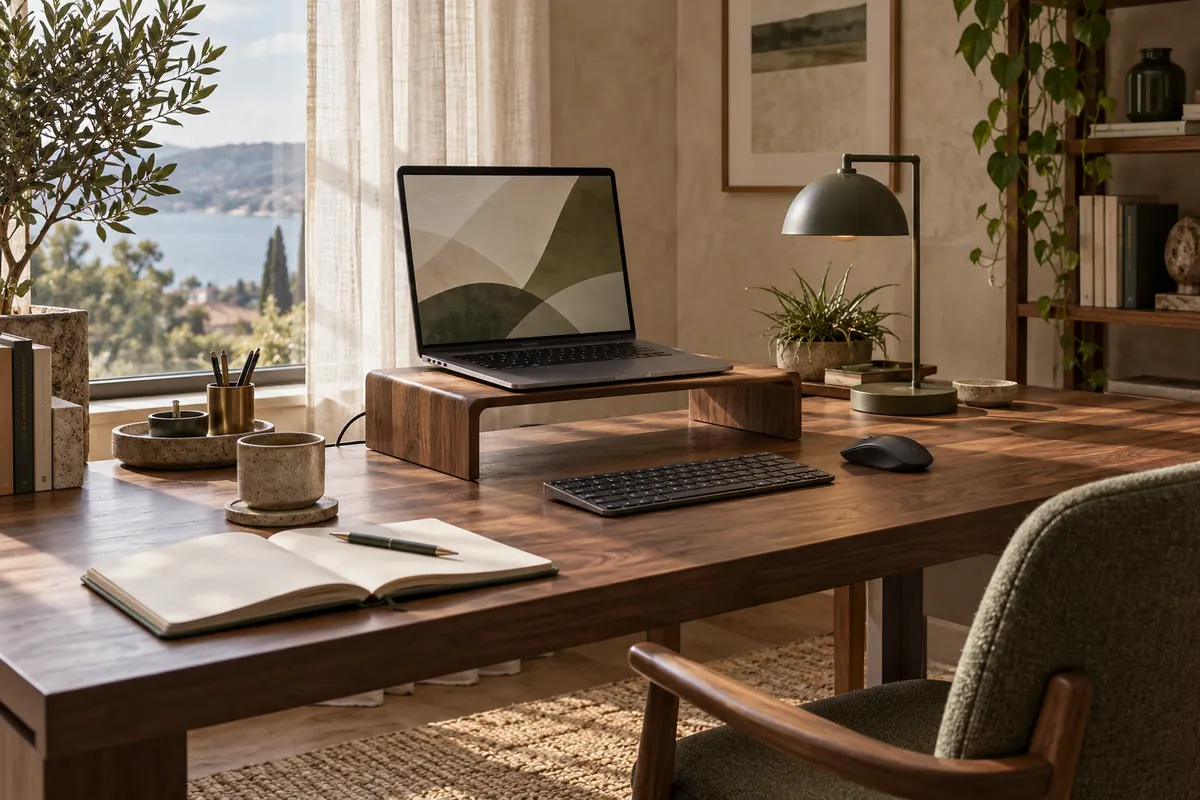
Can books raise a laptop? Avoid unstable stacks and supports that cover ventilation openings. Choose a stable arrangement allowed by the device instructions and plan separate input devices when raising the screen.
Continue with the dual-monitor layout guide. If reflections keep disrupting the adjustment, review desk placement beside a window too.
This guide was prepared for DESKIND with AI assistance. Refer to the linked sources and your device manufacturer’s current instructions for technical details. Adapt layout suggestions to your own space.
Have a correction or question? Contact us.