Workspace
How to choose a laptop stand: Fit, stability and space
A useful laptop stand does more than lift a screen. It keeps the device stable and works with the rest of the space you use every day.
Türkçe oku ↗
The AI-generated cover illustrates a workspace; it is not a photograph of a product for sale.
Choose around body dimensions, weight, ventilation and workflow rather than screen diagonal alone. When raising the screen, plan space for a separate keyboard and mouse.
Three types for different jobs
| Type | Possible use | Check |
|---|---|---|
| Fixed riser | Daily work at one desk | Height and footprint |
| Folding stand | Travel and changing workspaces | Hinge lock and total weight |
| Vertical stand | Closed laptop with external display | Device requirements for closed operation |
A vertical stand does not raise the built-in display; it stores the device at the side. Power, display and operating system requirements for closed-lid use vary. Verify them with the laptop manufacturer before buying. Similar materials or styling do not make these three stand types interchangeable.
Screen size is not enough
Two laptops with the same screen diagonal can have different depth, weight and underside layouts. Measure body width and depth, then compare where the stand will support them. Front retaining lips should hold the device without interfering with ports or the area where you place your hands.
Read the load rating, angle limits, grip-pad details and compatibility information. Specific dimensions and conditions are more useful than a claim that a stand fits every laptop. For a heavy machine, check whether height adjustments require supporting the device with both hands.
Plan the input devices as well
OSHA’s workstation checklist considers laptop screen positioning alongside input-device placement. Planning separate keyboard and mouse positions is a useful starting point when the built-in screen is raised for longer sessions.
Leave a clear working strip in front of the stand. If the keyboard gets squeezed against the desk edge, the riser may be too deep for the space. Try a paper footprint for both pieces before purchasing. Include an open notebook if paper forms part of your daily routine rather than leaving it out of the trial.
Leave ventilation and ports accessible
An open-looking stand does not necessarily clear every vent on your device. Consult the laptop documentation for underside and side openings. Check that support rails, pads or a cloth placed between surfaces do not cover them.
Do not treat a stand as a guarantee of cooling performance: device design, room conditions and workload also matter. Try plugging in cables without destabilising the laptop and leave enough slack for adjustments. If a power lead is pulling the setup sideways, change its route before settling on the position.
A five-minute buying check
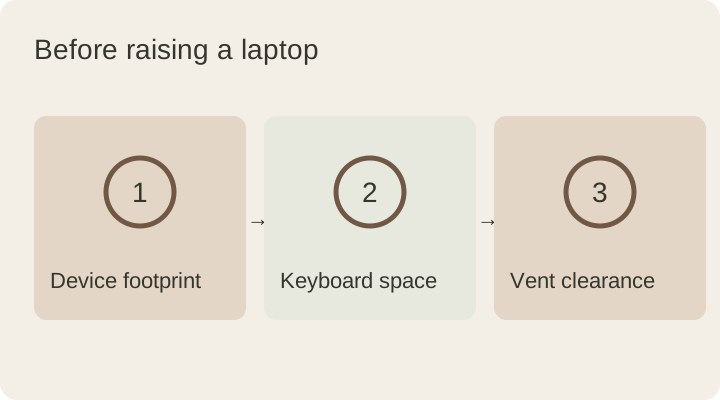
- Mark the product footprint on paper and place it on the desk.
- Estimate the adjustment needed from your current screen position.
- Mark all ports that need regular access.
- For travel, consider folded dimensions alongside weight.
- Read the compatibility, use and return conditions.
Is the tallest stand the best? No. A useful adjustment range, stability and remaining desk space matter more. A stand that offers many angles but wobbles during everyday use may be a poor match for the task.
Finish the arrangement with the monitor height guide. If you also want a larger work surface underneath, compare your options in the desk mat guide.
This guide was prepared for DESKIND with AI assistance. Refer to the linked sources and your device manufacturer’s current instructions for technical details. Adapt layout suggestions to your own space.
Have a correction or question? Contact us.