Desk organisation
Dual-monitor desk layout: Make two screens work together
Fitting a second display onto a desk is different from working comfortably with two screens. Start by noticing how equally you actually use them.
Türkçe oku ↗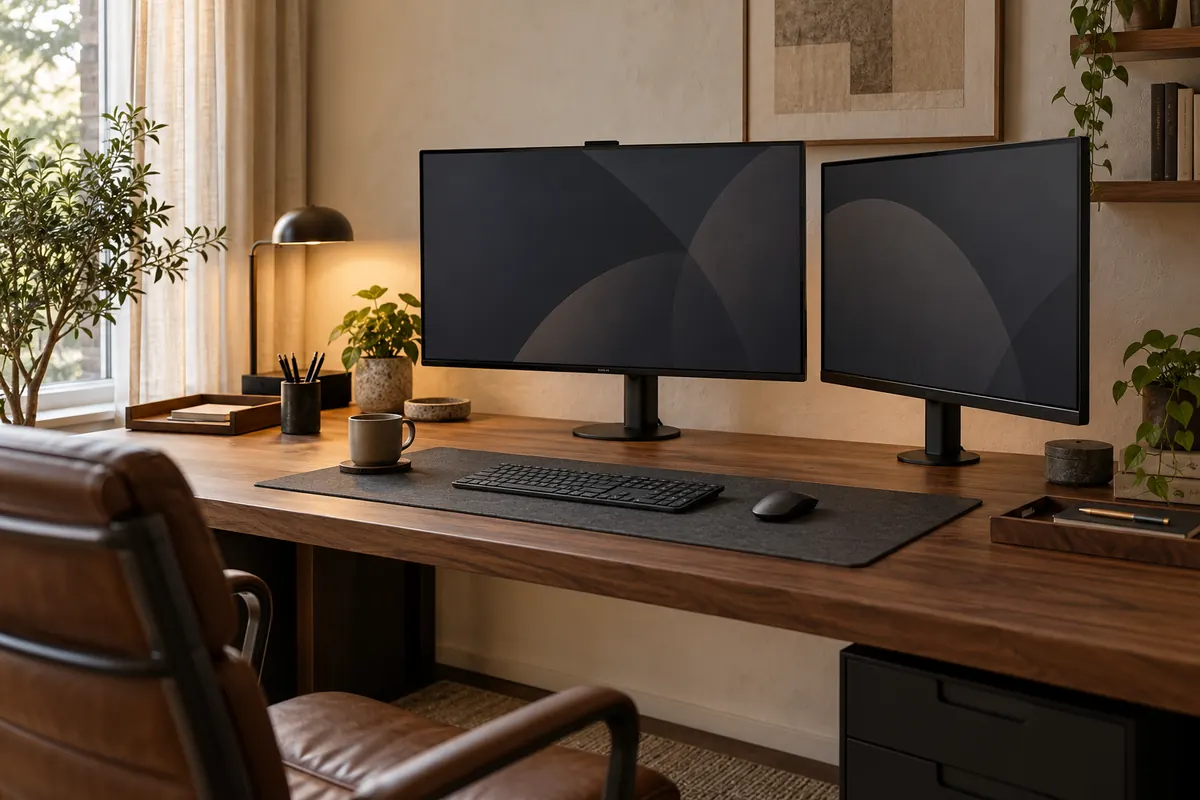
The AI-generated cover illustrates a workspace; it is not a photograph of a product for sale.
Centre the display you use most and place the other beside it. For genuinely equal use, try the join in front of you and adjust your sitting position. Measure depth as well as width.
Identify the main display first
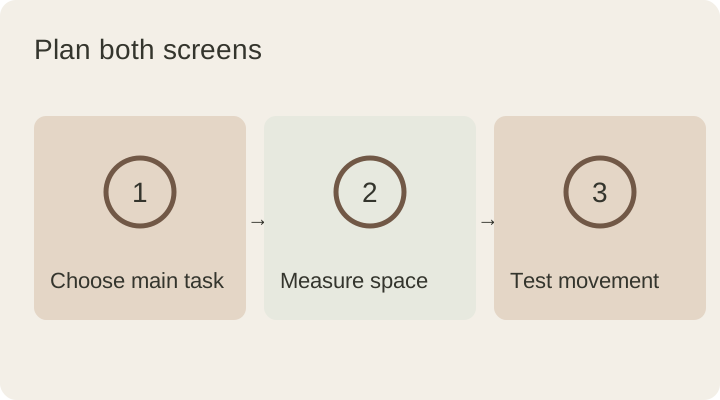
If you design all day on one screen and only glance at messages on the other, a perfectly symmetrical arrangement may not suit the job. Track where your active windows live during a normal day. Place the main task opposite the keyboard before deciding where the secondary screen belongs.
OSHA’s workstation checklist recommends positioning the primary monitor in front of the user, with other displays beside it. When you genuinely use both equally, try the meeting edges in front of you and arrange the windows around that working position.
How large does the desk need to be?
There is no single desk measurement for every pair of monitors. Frame width, stand footprints, display angles and cable connections all change the space required. For example, two screens each 61 cm wide take roughly 122 cm in a straight line; that is an illustrative calculation, not a recommended desk width.
Trace both stand footprints on paper or cardboard. Add the keyboard, mouse and open notebook to the trial. If the screens fit but using the mouse pushes your arm against the edge, the layout is not finished. Check depth consumed by large monitor feet and the clearance between the desk and wall as well.
Original stands or monitor arms?
| Arrangement | What to check |
|---|---|
| Original stands | Two desktop footprints and each height-adjustment range |
| One dual arm | Individual screen weights, shared attachment and movement limits |
| Two separate arms | Space for both clamps and movement behind each screen |
Arms can free desktop space, but add attachment requirements. Do not confuse a combined weight limit with the capacity of each arm. Read the installation instructions and never assume that a thin or glass desktop is a suitable mounting surface.
Route cables after testing movement
Find your useful screen positions before tying cables into place. At the furthest position, check that no plug is pulled and no wire is trapped behind the desk. Small labels identifying each monitor’s power and display cables make a later equipment change easier.
Compare text size as well as physical height. Very small text on one display can make you move closer every time you switch. Match the operating system’s display arrangement to the real one so the pointer travels across the edge you expect. Keep frequently used controls in a convenient part of each screen.
Test a real working sequence
- Edit a document on the main display while consulting a reference on the other.
- Write in your notebook and check for interference from monitor feet.
- Check camera placement, lamp reflections and window light.
- Notice how many objects you must move to clean the desk.
Are two large screens suitable for a small desk? Only if useful depth and working space remain. A laptop and one external monitor can be a more practical alternative for some tasks; screen count is not a measure of a good workstation.
Finish with the monitor positioning and cable organisation guides.
This guide was prepared for DESKIND with AI assistance. Refer to the linked sources and your device manufacturer’s current instructions for technical details. Adapt layout suggestions to your own space.
Have a correction or question? Contact us.